Showing posts with label Mobile. Show all posts

Tuesday, May 11, 2010

Internet Connection Sharing through WiFi with Ubuntu PC as a gateway

The Problem

I have Ubuntu installed on my notebook computer(from now onwards, I will call it host computer in this post) which has a wired ethernet connection to a broadband internet service provider. I want to have a WiFi network broadcast in my room using my host computer so that any other notebook(guest) or smart phone with WiFi capability in the vicinity can connect to the broadband internet with host notebook working as a gateway.

The solution 

I had this problem from long ago since I wanted my broadband to be shared on my Sony Ericsson P1i. and I searched whole of the internet to find a solution but none actually worked.
Today after some fiddling I finally made my P1i to hook to the broadband with Ubuntu notebook working as a gateway.

This tutorial I am presenting has been tested on Ubuntu 10.04 Lucid Lynx and works perfectly fine. I can't guarantee it to work on earlier distributions because I myself had seen funny characters in WiFi network search list in P1i on 9.10 Karmic Koala and it never worked for me.

So, lets proceed.

1. Turn on your notebook's WiFi if there's a dedicated switch to turn it on. On my Fujitsu Siemens Amilo Si 3655 notebook, WiFi can be turned on using Fn+F1 key combination.

2. Click on the Network Manager icon(which looks like ) in the notification area and click Create New Wireless Network...

3. In the dialog box that pops up, put the network name as anything(I put WLAN). Set Wireles Security as WEP 40/128-bit key. In the Key box, enter any five digit number(I entered 31323). Click Create.


4. Now right click on the Network Manager icon and click Edit Connections... In the Network Connections dialog box that pops up, go to the Wireless tab. Click WLAN(or the network name you had provided) and click Edit.


5. In the Edit WLAN dialog box that opens up, set the Mode as Ad-hoc. Make sure the Connect Automatically checkbox is checked and in the IPv4 Settings tab, and Method is set to Shared to other computers. Now click Apply.

Your network is ready!!! Congrats!!! But thats only 50 percent of the hurdle complete. You might have reached this far several times using other tutorials and how tos available on the net. Lets proceed through to get the configuration details for the client pc/notebook/smart phone.

6. Open a terminal(for eg. by pressing Alt+F2 then typing xterm and pressing enter). In the terminal type ifconfig and press enter. Scroll down tothe place where wlan0 is written. Beside that, in the second line you will see three things viz. inet addr, Bcast and Mask. Note these things somewhere safely. In my case inet addr is 10.42.43.1 and Mask is 255.255.255.0. No need to note Bcast.

7. Use the following manual configuration details for the client system:

IPv4 Addr: 10.42.43.2(for a yet another machine use 10.42.43.3 and so on...)
Subnet Mask: 255.255.255.0
DNS Address1: 208.67.222.222
DNS Address2: 208.67.220.220

After doing all this above you may notice that the client computer connects to net successfully but the host computer isn't able to access any website. Thats because the network manager blanks the DNS records set in /etc/resolv.conf

To solve this, type

sudo gedit /etc/resolv.conf

in any terminal and there append

nameserver 208.67.220.220
nameserver 208.67.222.222

and save the file. Afterwards you will be able to surf the web on gateway computer as well, normally.

You may notice that the network manager blanks out /etc/resolv.conf every now and then and you've to manually edit it and add nameservers. This is a very common problem faced by GNOME users. To get rid of this just type the following command in terminal and press enter.

chattr +i /etc/resolv.conf


Now I am going to explain how did I connect my P1i to this network to use the broadband internet.

1. Turn on Wireless LAN 

2. Touch Scan for scanning for new networks You will see the newly created network WLAN listed there with a lock icon.

3. Now go to Internet Accounts by tapping More in the WLAN page and tapping Internet Accounts.

4. There tap More>New account>WLAN

5. Fill in the details as shown in the screenshot and create the connection.


6. Now in the Internet Accounts tab highlight WLAN and tap Edit, then tap More>TCP/IP>IP Config and fill in the details as shown in the screenshot. Similarly fill in the details for the DNS address. Press Done and come back to Wireless LAN. There scan for networks. You will notice a yellow star beside th network name WLAN. Hit the Connect button after highlighting WLAN.
7. Cheers!!! You are now connected to the internet. Open web browser and test your connectivity and enjoy.

Tuesday, May 19, 2009

Free browsing on PC through Airtel LIVE!

After the RIPping death of all free GPRS tricks, finally I discovered a trick to browse free through Airtel LIVE! This one works in any circle in which browsing through TeaShark over Airtel LIVE! is free. I tested it in Punjab circle, and it works like a charm. Ok, so here we go.

Requirements:

1. A PC with any popular OS(Win, Lin)
2. Mozilla Firefox browser
3. Following extensions for Firefox: Modify Headers, XHTML-MP, Wmlbrowser, OpenInBrowser, Mason

Procedure:

1. Connect to net on your PC through your phone over the APN airtelfun.com
If you don't know how to do that, you're perfect example of a n00b so stay away from this post unless you learn that. Use google, learn that and then come back again.
2. Now install the above said extensions in FireFox, if you haven't installed them already.
3. In FireFox, in Tools menu click Modify Headers. Click the Configuration button, in the bottom right of the Modify Headers dialog.
4. Now, check the box that says Always On: Enable Modify Headers when this window/tab is closed
5. Now create a new entry in the Modify Headers dialog with following details:

Action: Modify
Name: user-agent
Value: Mozilla/5.0 (X11; U; Linux i686; EN-US) AppleWebKit/523+ (KHTML, like Gecko)

6. Save the entry and make sure a Green lit circle ahead of it. If not, then double click the entry to turn the red signal into green.
7. Now, in Firefox in Tools menu(in Windoze) or Edit menu(in Linux), click Options or Preferences. There in Advanced tab, in Network tab configure FireFox to use the proxy 100.1.1200.99 and port 8080 for all requests.
8. Now start browsing. Viola!!! You won't be charged anything for opening any site!!!!

Ok, so now, what were the other extensions for?
1. XHTML-MP: Since Airtel Live! has Nokia WAP Gateway installed at the backend, so sometimes for some sites it serves the content-type as application/vnd.wap.xhtml+xml or simply application/xhtml+xml. If you don't have XHTML-MP extension installed, instead of viewing the page, you'll get the dialog to save the page.
2. Wmlbrowser: For browsing the WAP sites.
3. OpenInBrowser: Sometimes, some sites which haven't been programmed keeping XHTML compliance in mind, will show an XML Parsing Failed error and you won't be able to view the site. OpenInBrowser extension lets you Reparse the document as html and make the page viewable. You already might be knowing XHTML is too strict about errors, and html is lenient.
On encountering any such page, in View menu, hover to View As, there select Other and in the content-type box type text/html and hit ok.
4. Mason: This is an alternative to OpenInBrowser. Through Mason, you can create a rule for any site that gives you problems. Just create a rule for the site, such that it always is parsed with text/html as the content-type.

Limitations of the trick:
1. The proxy doesn't support secure connnections, so no orkut, no gmail, no blogger! Any site with the URL starting with https won't open. Only http ones will open.
2. Sometimes the response times are too slow.
3. You'll encounter one of these too irritating errors several times:
a)Gateway received and invalid resposne from an upstream gateway.
b)Your request for a service couldn't be fulfilled.
In each case, just reload the page.

Ok, so how did I discover this trick? Where is the magic? How does it work for free?

My free Mobile Office working from past 7 months got shutdown recently. So, I thought of using an alternative for browsing. I used the TeaShark browser on my P1i, but TeaShark has display/rendering issues with sites on my phone. So, I was thinking to figure out why does teashark work for free. I setup an experiment, just changed the user-agent of FireFox to the one used by TeaShark. And bingo!!! To my amazement, I wasn't charged a single paise for opening any site.

Enjoy the free trick, share with your friends.

Tuesday, March 31, 2009

Receive your e-mails through SMS for free

This post is beneficial for Indian people only.
MyToday.com provides free, instant, e-mail alert notifications via SMS. I discovered this just a week ago, although it existed since quite long and many of my friends were using it and me being totally ignorant about it!!!
To use the service, you just need to carry out the following two steps:
1. Send an SMS to 575758 with the following text MAIL START <your city name>
For example: MAIL START DELHI
or
MAIL START CHANDIGARH
If you live in a small city/town, then you may send your state's capital city name.
2. The next step is to login to your e-mail account and set an autoforwarder that sends every incoming mail to 91<ur 10 digit mob. no.>@m3m.in
Example: 919876543210@m3m.in


Now whenever any e-mail arrives in your inbox, your mail provider will forward a copy of it to mytoday, and they'll in turn send it to you immediately through SMS.

There are several applications of this service. It depends on your thought power and creativity to tap them. One simple one is instant sms alerts for orkut scraps.

For that, just login to your orkut account from PC and click settings. There in notifications set scrap notifications to be sent by e-mail. And thats it!!! Now, whenever anyone scraps you, you'll immediately receive an SMS.

This service is absolutely free, except for the first activation SMS that you sent. Airtel charges Rs.3 for that. I dunno about other operator charges.

Enjoy!!!

Saturday, March 14, 2009

P1i - Opera Mobile 9.50 - SMS glitch

After the release of Opera Mobile 9.50 beta 2 Fingertouch, I've been using it a lot on my P1i for browsing for hours. I notice a strange behaviour in my P1i when I've browsed the web for long through it. My phone doesn't notify me of any SMS sent to me. Neither with the tone, nor with the icon in status bar. When I restart the phone, the new SMS is displayed. I wouldn't have noticed if I hadn't turned my phone off one night before going to bed when I was too tired. In the morning when I booted the phone back I got two SMSes that were sent to me three days ago. lol! I generally didn't use to turn the phone off for weeks. Whenever necessary I used to set it in flight mode. But now I do that every night before going to bed.
Well, a probable reason I guess is that the new Opera Mobile is a RAM hog, and when the RAM goes too low while web browsing, the phone shuts down the SMS client process that listens for SMSes, in order to free up some RAM. Whatever may be the exact reason, it should be fixed by Opera.

Sunday, March 8, 2009

Opera Mobile Finfertouch for UIQ3

On 6th of this month Opera released the second beta of Opera Mobile9.50 for us UIQ users!!! Contrary to the popular feeling that UIQ is dead and Opera too will ditch it. The new beta is great! I felt some improvement in stability issues and speed in loading large pages. They also changed the logo. Earlier it looked like the power key!! And the best thing of the new beta is the new Fingertouch technology. According to Opera's official blog:
Today we introduce Opera Fingertouch, a technology designed to make interacting with the Web easier and simpler on touch-based devices. Opera Fingertouch provides visual feedback when you hit a Web link, and assists you when you come across multiple links or other selectable elements in close proximity to one another.

Here's a video released by Opera officially about the new jargon:


I tried capturing the screenshot os fingertouch in action on my P1i but it didn't work. The screen capture apps weren't able to capture the display area of the browser. Only the address bar came. I tried two different apps TOSC(the Open Screen Capture) and CS(Capture Screen), but same result. I'm attaching a screenshot anyways.

Wednesday, February 25, 2009

Sony Ericsson Idou

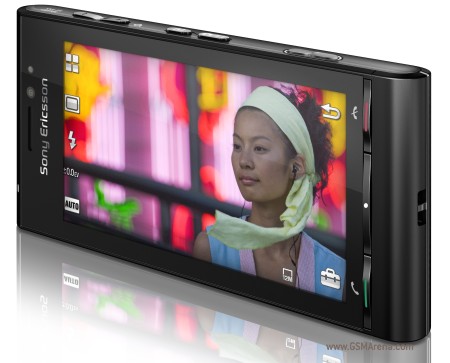
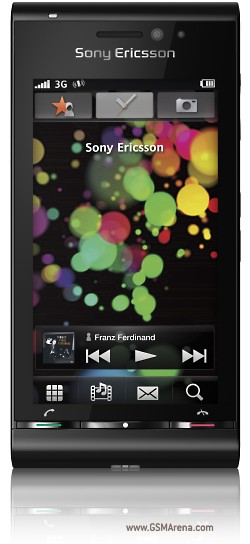
Freaking hell!!! It boasts of a 12.1 megapixel camera, a 3.5 inch screen with resolution 640x360, a TV tuner and everything else!!! It'll run on the new open source Symbian OS that isn't yet complete. It was previewed by SE at MWC.
The GSMArena page containing its specs is here.
And, here are some pics of this stunning beauty.(Source: gsmarena.com)


New Site

On 19th of this month I purchased a new shared hosting plan from Umbrahosting. I couldn't get one from IXWebhosting cuz of some technical problems. At Umbra, I chose the Planet plan. Its good. They claim to give 10 gigs of disk space, 100 gigs transfer per month, unlimited FTP accounts, unlimited mail accounts, unlimited add-on domains, a free domain, unlimited DBs, unlimited subdomains and all other bells and whistles that any other host offers!!! Looks great!!! They charge $6.99 per month. On using the coupon code 20off I got a discount of 20% and got it for one year for only $59.99. They support payment through non-verified PayPal accounts too.SO far, the service seems pretty good. They had some downtime problems on their barbara server on which my site is hosted but it was resolved quickly. The support department is good and they respond very quick to tickets. My first ticket was replied just after 16 minutes of creation. They use cpanel for the management which is the best of all hosting control panel softwares. OS they use is centOS. The response times are pretty fast. The domain I took as free was indifun.org.
But I wanted indifun.in so I purchased it from Rediff and added to the site.
About the site
IndiFun has been my most dreamt off project since mid last year. I've been working on it with my oldest net friend REY619 but due to bad lucks hitting at regular intervals we coluldn't manage to run it smoothly and were always jumping from host to host. Free hosts suck!!!! We jumped from VNDV to Orgfree, to x10hosting.com to Freehostia and all of them are crap as hell!!! Finally we got a paid hosting solution and an stable site now. Now I aspire to carry IF to new heights.
IF is basically a mobile community based on the leaked ravingwap script in PHP, with several mods and added features that we both coded together. It works on low-end phones, hi end phones and PCs seamlessly. Check it out yourself if you're connected in someway to mobile sites. Click
If you're interested in purchasing the script just ask me. The price is $80 for non-Indian users and Rs.3000 INR for Indian users. Payments accepted through PayPal for non-Indians. For Indians, direct bank funds transfer is an added option.

Saturday, December 20, 2008

SE joins OHA, kicks away Symbian and Windows!!!

Sony Ericsson has joined hands with Open Handset Alliance to design phones based on the Android operating system. Isn't it surprising?? They had shown interest in the Symbian Foundation's open source venture. And after creating a breakthrough device(XPERIA) based on Windows they're saying bye to Windows??? Where is SE going. By the way, at non-java phones they were the best, are the beat and will be the best always!!!
Here is the news taken directly from their site.


December 9, 2008

Sony Ericsson joins Open Handset Alliance™

On December 9, 2008 Sony Ericsson announced the extension of its portfolio strategy to include support for the Open Handset Alliance™, committing to produce an Android™ based phone in due course.

"Sony Ericsson is excited to announce its membership of the Open Handset Alliance and confirm its intention to develop a handset based on the Android platform," said Rikko Sakaguchi, CVP and Head of Creation and Development at Sony Ericsson.

"We believe Sony Ericsson can bring a wealth of experience in making consumer focused multimedia handsets with new user experience to the Alliance drawing on the successes of the Walkman™ and Cyber-shot™ sub-brands. Sony Ericsson is a strong supporter of open operating systems and we believe the Open Handset Alliance offers an exciting opportunity for a new and unique user experience only Sony Ericsson can deliver."


Rikko Sakaguchi, CVP and Head of Creation and Development at Sony Ericsson.


Complements existing Open OS strategy
Membership of the Open Handset Alliance will complement our existing Open OS strategy which is based on the Symbian and Windows Mobile® platforms. Android is a complete, open mobile phone software stack that enables Sony Ericsson to provide the best user experience with all the latest technologies available on the Internet.
Visit the Open Handset Alliance website>>

Developer support
This announcement confirms that Sony Ericsson is joining the Open Handset Alliance and that we have begun development on this platform. It is still early in the process, and we cannot yet reveal any information about any future SDK from Sony Ericsson.

Friday, December 5, 2008

Built-in IM client

Most new(old ones too) data capable phones have a built in IM client. In SE java phones, it is there in Messging menu with the name My Friends. Most of the people don't know how to use it. Although Java apps like Nimbuzz, Mxit, EQO, e-buddy and Mig33 are better performers at speed but for the occasional user, nothing beats My Friends. You just need to go to yamigo.com and register there. You'll get all setup instructions there itself. If you're stuck midway then do ask me here.
I'm busy now a days so blogging is getting little attention. Hope, I give much of myself to this blog after semester exams end. Bye bye:)

Sunday, November 30, 2008

Built-in phone mail client configuration

So, you purchased a shiny new cellphone and flaunting its camera and navigation and browser and music player and other features. Contented with that only?? Don't be!! There are lots more inside which probably you don't know how to use. This post delves into one such feature which is found on almost all phones that have data connectivity i.e. GPRS, EDGE, 3G, HSDPA viz. the built in e-mail client.
For configuration instructions, I'm referring here Sony Ericsson phones. Configuration on other brands is similar too.
Ok, so lets start. SE phones can be broadly classified into two categories based on the software. The popular and mass seller among the two is their Java phones. All the K, C, T, Z series phones fall in this category. Most W series phones too fall in this category. W950 and W960 are the exceptions. The other category of their phones are the Smart Phones running Symbian OS. P and G series phones fall in this category. The configuration is quite similar on both types of phones. For coherency, I'm taking the Java phones in consideration. And, I'm taking GMail as your mail provider. Before doing all that is below, login to your gmail from your computer and enable POP and e-mail forwarding in settings. Also enable IMAP.
Now, on your phone open Menu-Messaging-Email-Accounts-New Account.
Enter your name, email address in the text boxes. In the username box enter in this format username@gmail.com and in password box enter your password. Choose Connection Type as IMAP4. Enter the server address as imap.gmail.com and SMTP server as smtp.gmail.com. Enable SSL in IMAP settings. In SMTP settings enable SSL as well as SMTP authentication and enter your username and password. Set the Connect using field to your default data(gprs/3g) account. Save the settings. You're done!!! Now open Inbox and in More click Send & Receive. Wait till the phone connects to google's servers and downloads your mails. It may take some time depending upon your connection speed and no. of mails in your inbox. To compose a mail use the Write new option in email menu. If you're stuck somewhere then do ask me with the details here by posting a comment. For newbies this may occur as I've written all of this thinking that you're a bit experienced with your phone.
In P series phones, all of this is pretty similar. In Messging tap More-Email accounts. There create new. IMAP and SMTP configuration settings are to be done in Inbox and Outbox tabs.
That was all for today. I'll come up with configuring your phone's IM client in the next post.

Monday, November 24, 2008

Ozone for UIQ3

And finally, what I was waiting for my P1i is out!!! Yes, the bestestestest mobile web browser for the UIQ3 platform is out!! It is called Ozone and can be downloaded from their site http://www.o3mobi.com/
Before Ozone, we the forgotten UIQ users had only 3 native options apart from the java based rocker Opera Mini viz. the built in Opera 8.65, @Web and Opera Mobile 9.5 beta. The 1st one is too crappy and renders pages weirdly. Especially I hate the automatic link highlighting and text highlighting with a contrasting colour on some themes in Opera 8.65. Then came @Web, based on Apple Webkit engine promising big things. But, it fell like a dead monkey. It is pretty medicore at UI, features, user friendliness and more. Then the biggest fuss maker for WM phones, landed to UIQ - Opera Mobile 9.50. But, it sucks at speed and stability. And it is pretty heavy on resources. I remember once while surfing through Opera Mobile I had opened heavy sites on four tabs and it had eaten up the whole 75MB free RAM of my phone. I got a call but could not receive it because of no RAM!!! I had to take out battery to reset. Damn you Opera!!!!
And finally today I read about Ozone on UIQblog.com. Downloaded and installed it right away. The peculiar thing is that it identifies itself as Apple iPhone's user agent. So, I directly opened Orkut on it to experience the iPhone version of Orkut on it. And guess what? It rocks!!! It rules!!! Although P1 has a resolution of 240*320 and iPhone has a hefty VGA screen, but Orkut looked pretty on P1. I had to scroll horizontally, but it was a nice experience. Google guys have designed Orkut for iPhone pretty intuitively and aesthetically appealing and later sprinkled decent user friendliness on it.
Earlier I was jealous of Nokia fanboys having better browser(Safari) on their Symbian 9 series phones. But now Ozone comes to the rescue and it beats Safari as well as Opera Mobile hands down!
My verdict on Ozone: The best mobile browser ever made for Symbian OS.
Plusses: very stable, fast, intuitive, user friendly, fast page rendering, low on resources, free
Cons: Its an alpha version!, seems to fail to load Orkut's desktop version

Current UIQ browser scores out of 100(My opinion)
1. Opera Mini 4.2 - 99
2. Opera Mini Mod 2.06 - 95
3. Opera Mini Official 3.2 - 94
4. Opera Mini Mod 3.x - 93
5. Ozone 0.9 - 87(Native UIQ app)
6. Opera Mobile 9.50 - 81(Native UIQ app)
7. @Web 2.0 - 65(Native UIQ app)
8. Opera Mobile 8.65 - 54(Built in)
9. Tea Shark - less than 40(failed)
10. UCWeb - less than 30(failed)

Please note: This is my opinion based on the browsing experience on my favourite sites on my P1i that I use regularly. It doesn't have any connection with any other individual, company, site, platform, phone. And the opinion can differ user wise. Please don't flame me with comments if your opinion differs. You stay happy with your opinion and me with mine :)

Saturday, November 8, 2008

Best UIQ3 Apps(Part-2)

Well, so lets proceed with the second part of Best UIQ apps.

QFlashLight(must have)
This is a torch app. Works best on P1i, this app can turn on both the LEDs at once and the brightest torch app available.

Swiss Manager
This is the Swiss army knife for your UIQ device. It has a nice Task Manager, File manager, System Info page and lots more. Though cool, I don't use it much.

The Open Screen Capture
As the name suggests, it is an open sourcse screenshot program.

LCG X-Plore(must have)
One of the best apps available for any smart phone!! It has virtually everything built inside!!! It is a file manager, video player, music player, zip/rar extractor, doc viewer, hex editor and lots more!! A must have for all UIQ users.

Abakus
Its a cool and handy calculator app for your UIQ phone. Scientific and Engineering modes are there apart from the basic mode.

BestCrypto
This app can be used to protect your private pics, sounds and everything by encrypting and password protecting them.

DocumentsToGo Word/Slide/Sheet(must have)
These three programs are your replacement for any office suite! Apart from viewing any of your office documents, you can edit them as well. And the latest version even supports the latest docx(Office 2007 format). Its an another must have app.

Foxit Reader
Though new, but its a very good alternative for the built in PDF+. It lets you view PDF files just as they appear in your computer. But the app lacks fullscreen view and some more needed features. Well, they should be available soon, as the developers put more of them inside.

MobileFTPd
This app can turn your UIQ smart phone into an FTP server. So you can access your phone files remotely from any part of the earth.

StickIt
This app can stick your notes to the standby screen so you keep getting reminded of your notes whenever you have a look at your phone.

WorldMate
This one is for travel junkies, those who keep roaming around the world. It can help you plan your travel better.

Torch
Although it can't light the LEDs as bright as QFlashLight, but it is handy when you don't need lots of light. Get it from swmail's site.

With this I end this post. Enjoy your UIQ3 device :)

Wednesday, November 5, 2008

Best UIQ3 Apps

As you might be knowing, I'm the owner of a Sony Ericsson P1i which runs on UIQ3 which in turn runs on top of Symbian OS 9.1; I am dedicating this blog post to the apps I use on my phone. I am not providing any link here to download the apps, you should give some pain to your fingers and google for the apps.

Oh wait..... Don't get disappointed. You can get all the apps full and cracked at imserba forums thats http://www.imserba.com/forum/. If you've ever used a Nokia S60 phone then you might be knowing about many of these apps. Some apps have been supplied with a direct download page link here. Others can be found from imserba. Ok, so lets start:


Agile Messenger
This is an IM app so you can hook your phone to ICQ, MSN. AOL, Yahoo! and GTalk messengers in one go and simultaneously. Works very good.

Blogger
This app, you can get from the SE's Fun & Download site. This is the same Blogger app's UIQ version which you might have seen on Cyber-shot phones that feature mobile blogging.

Core Player(must have)
This is a killer app for UIQ phones!!! Makes your phone a true multimedia device. It support lots of audio, video and pic formats but I mainly use it for playing videos with extension AVI, MPG, DAT, MPEG, MOV. It supports following filetypes: aac, asf, aif, avc, bmp, flac, amr, awb, h264, jpg, jpeg, m3u, mka, mkv, midi, mid, mp1, mp2, mp3, mpa, mpeg, mpg, mpv, m1v, m4v, mp4, mov, 3gp, m4a, m4b, k3g, mc, mpc, nsv, ogg, ogm, pls, png, spx, tif, tiff, ts, m2ts, avi, divx, gvi, xvid, wv, wma, asx, wmx, wvx, wax, wav, rmp

Fring
This too is an IM app, but supports VoIP calls so you can talk to your gtalk, yahoo friends directly if the phone is hooked to net through WiFi. Download it to your phone from m.fring.com

Google Maps
Google have released finally the native UIQ version of Google Maps with satellite view, traffic info and lots more. Get it from Google Maps site or the UIQ site.

Image Converter
As the name suggests, it can convert any image among various image formats.

LCG Jukebox
For the S60 fans who used it, its available here on UIQ too. But if you didn't know about it then don't use it. The Walkman player is better on P1.

Opera Mini 4.1 & Opera Mobile 9.5(must have)
Both of these are the bestestesttest browsers available for mobile phones. Everyone knows about them. Get the mini from mini.opera.com and the big one from opera.com/products/mobile

Slick
Yet another IM app, but with cool and slick looks. Try it if you're an experimenter.

Digia @Web
A very good browser. It boasts itself as the full finger touch browser and yes thats true!!! You don't need any keypresses for browsing, except for typing URLs and form data. Get it from their site

Yell Radio
A cool internet radio program. Though I don't use it because of my crappy gprs connection.

Tweak Peaks
This app turbocharges your phone to work fast by implementing some POSIX libraries. Also you can change your browser's homepage through it. But, it requires capsSwitch for the latter task. Get it from cellphonesoft.com

Airtel Live TV
Never worked for me after I purchased my P1. Thats because Airtel has shutdown all those channeld. Will run great after 3G starts.

Mobipocket Reader
It enables you to read e-books in PRC format.

CapsSwitch(must have)
This is the hack app for UIQ. It turns off system file protection and much more security restrictions and unlocks access to system folders. Get it from its developer's site http://101swmail010.googlepages.com/uiq3mods

GDesk
A very good app. It replaces that old boring desktop with new great looking designs with icon launchers and menus. Get it from http://gdesk.wetpaint.com/. Their site is weird! It'll take you lots of time to search for the download link. Go search it and know more about it there.

iPhoneLock
A keylock app that works just like the iPhone's keylock. Cool one. But it has some issues if you've turned on the Inactivity Lock in your security settings. Get it from http://iphonelock.kwull.com/download.html


Well, there are lots more apps remaining on my phone that haven't been listed here. I'm now tired of typing, so I'm splitting this venture into two parts. The next set of apps and their functions will be posted when I do the next update of my blog(that should be within 2-3 days).

Saturday, November 1, 2008

Hard time for SE

It seems that SE is having a hard time in the market. The sales are decreasing day by day. No doubt SE designs the best phones in the range from Rs.4k onwards but it is now being ruled out of the roost. Nokia as always is dominating due to its craze and people being ignorant that an SE is always better and easier to use than a Nokia. Although Nokia phones are more durable than SE ones but I still prefer an SE because of the ease of use, size and shape. Well, the SE guys have done a great mistake by breaking the relation with UIQ. By the way, SE is loosing in India due to one more reason - the cheap chinese phones which play MP3's as loud as a music system are taking over the market in the range Rs.3k-Rs.10k. Well whatever goes, I'll always be loyal to SE.

Monday, October 20, 2008

Opera Mobile 9.50 beta released for UIQ!

Today on October 20th, 2008 Opera Software after a long wait, have released the first public beta version of its long awaited Web Browser for Symbian OS UIQ3.x platform. Earlier it was available only for Windows Mobile.
According to Opera, following bugs are there:
->The browser sets a new system-wide home-page, which cannot be opened by the embedded Internet browser (Opera 8.65).
->Cursor is not shown when HTML edit fields are partially out of screen.
->No support for landscape screen mode due to a number of system issues with the OpenGL graphical engine.
->Browser plug-ins are disabled by default due to non-existent or incomplete system support for Flash content. They can be enabled by the user for experimental purposes only, via More > Tools > Change settings > Advanced > Allow plug-ins.
->The continuous browser usage experience might be affected by the amount of available phone RAM memory.

As a lucky owner of Sony Ericsson P1i, I got to use their new lil kid. As soon as I came to know about the release I jumped to the Opera Mobile's official download. It was a monstrous 4.14MB!! Yes monstrous because I am using GPRS and it takes an era for downloading 4MB.

I got hold of the browser and was extremely happy to use it. The browser gave me the best experience ever on mobile. I could open the full facebook, and gmail standard view on my phone!!! But alas, due to crappy policies of Orkut its full view isn't available for mobiles. They detect the browser and redirect to the mobile version.

It also comes with the Opera widgets - handy little apps that run in the Opera browser.

So far I'm extremely satisfied with the new app. It changed my perception of web on my phone. The old Opera 8.65 was too crap to be usable. The worst thing that I hated most in it was the automatic link highlighting and mixing up site's CSS with the phone's theme. Digia @Web had come to my rescue but didn't appeal much. And finally Opera 9.5 put an end to my problems and I now can browse the web with ease.

There's an issue with mobile sites on 9.5 though. When you open any XHTML mobile site, it seems to hold the left part of the screen unless you zoom.

For the SE P1i/G700i/G900i/W960i, here is the download link